Install on Shopify
Add Cromojo to your Shopify store's theme
Written By David
Last updated 1 day ago
Shopify lets you edit your theme's code directly. You'll paste your Cromojo script into the theme.liquid file so it loads on every page of your store.
Add the script
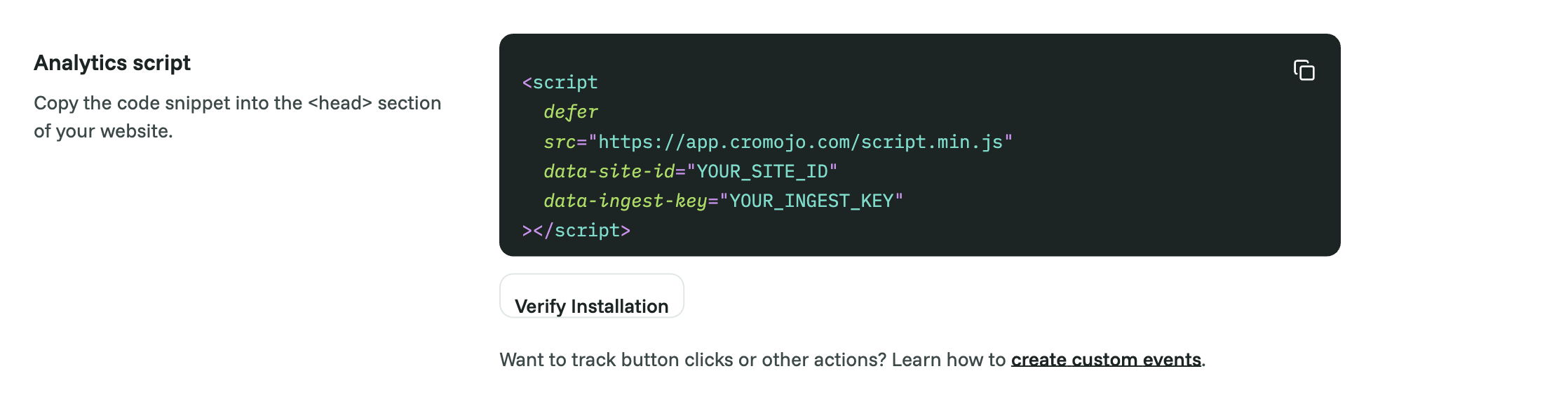
In Cromojo, go to Settings → Analytics and click Copy to copy your tracking script.
In Shopify admin, go to Online Store → Themes.
On your current theme, click the … (three dots) → Edit code.
In the Layout folder, open theme.liquid.
Paste your script just before the closing </head> tag.
Click Save.
Verify
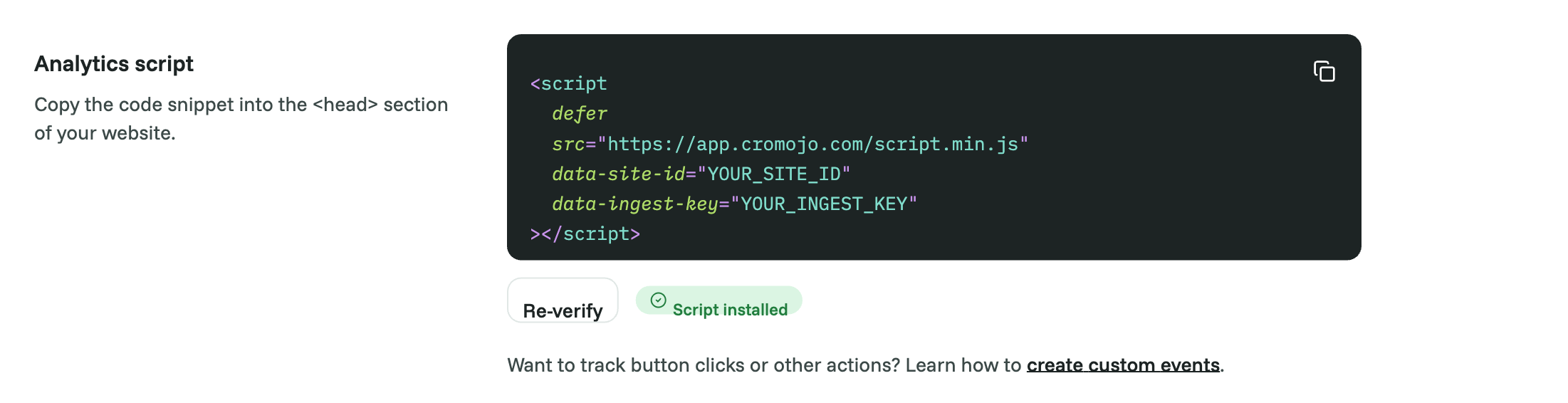
Visit your store, then in Cromojo open Settings > Analytics and click Verify Installation, or watch for your visit to appear on the dashboard within a minute or two.
Track purchases on the thank-you page (recommended)
Shopify's checkout and thank-you pages don't use your theme, so the script above doesn't run there. Cromojo still links each order back to the original visit: the script saves the visit on the cart, and Shopify carries it through to the order. To also count the purchase as an event (for example as the last step of a funnel), add a small pixel:
In Shopify admin, go to Settings > Customer events.
Click Add custom pixel and name it "Cromojo".
Paste this code, replacing the three values with the ones from your Cromojo snippet:
analytics.subscribe('checkout_completed', (event) => {
  const checkout = event.data.checkout;
  const attrs = checkout.customAttributes || [];
  const found = attrs.find((a) => a.key === 'cromojo_session_id');

  const script = document.createElement('script');
  script.src = 'https://YOUR-CROMOJO-SCRIPT-ADDRESS/script.min.js';
  script.setAttribute('data-site-id', 'sxxxxxxxxxxxxxxxxxxxxxxx');
  script.setAttribute('data-ingest-key', 'xxxxxxxxxxxxxxxxxxxxxxxxxxxxxxxx');
  script.setAttribute('data-forwarded-session', found ? found.value : '');
  script.addEventListener('load', () => {
    window.CRMJ.trackEvent('purchase', {
      value: checkout.totalPrice.amount,
      currency: checkout.currencyCode,
    });
  });
  document.head.appendChild(script);
});
Click Save, then Connect.
Without this pixel your revenue is still attributed (once Shopify is connected), but a funnel that ends in "purchase" can show 0.
Good to know
Add the script in theme.liquid once. If you also add it through an app or Google Tag Manager, remove the duplicate.
Connect Shopify in Settings > Analytics > Conversion Metrics to see revenue per page, source and keyword.
Was this helpful?
Still need help? Ask the team