Install with Google Tag Manager
Add Cromojo as a Custom HTML tag
Written By David
Last updated 1 day ago
If you already use Google Tag Manager (GTM), you can add Cromojo as a tag, no changes to your site's code needed.
Add the script
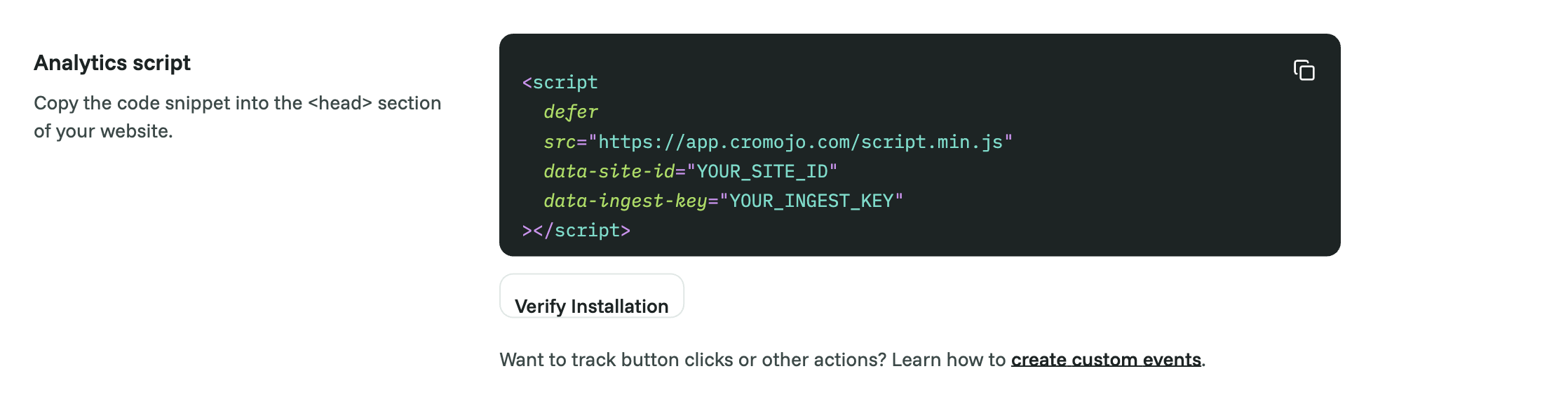
In Cromojo, go to Settings > Analytics and copy the whole snippet. It includes your site ID and an ingest key; both are needed.
In Google Tag Manager, open your container and go to Tags > New.
Set Tag Type to Custom HTML.
Paste your Cromojo script into the HTML box.
Under Triggering, choose All Pages.
Click Save, then Submit / Publish to push your container live.
Verify
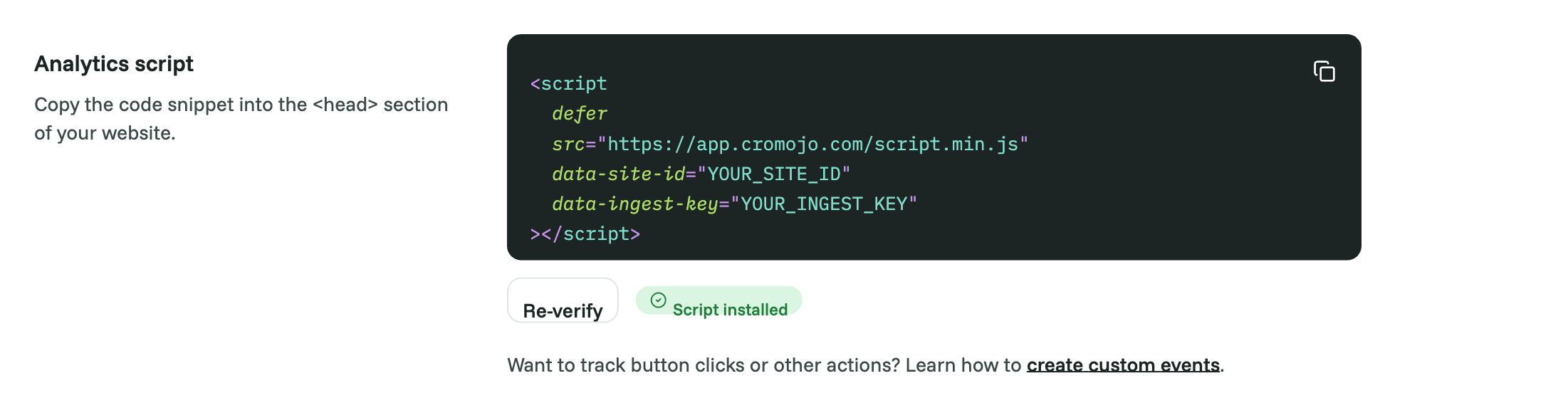
Back in Cromojo, open Settings > Analytics and click Verify Installation, or visit your own site and watch for your visit to appear on the dashboard within a minute or two.
Good to know
Because GTM loads scripts a moment after the page, very first page views can occasionally be missed. A direct install in your site's head is slightly more accurate, but GTM is fine for most sites.
Use GTM or a direct install, not both. If both are present, Cromojo ignores the second copy.
If you later change your First-party tracking settings in Cromojo, update the snippet inside the tag and publish the container again.
Using Google Consent Mode? With Returning visitor tracking (opt-in), Cromojo reads your analytics_storage consent automatically.
Was this helpful?
Still need help? Ask the team