Installing Your Analytics Tracking Script
Add the snippet and start collecting data
Written By David
Last updated 1 day ago
Cromojo's Web Analytics works by adding one small snippet to your website. Once it's in place, Cromojo counts your visitors, page views and conversions automatically, without slowing your site down. It takes about two minutes, and you don't need to be a developer.
Step 1: Copy your tracking script
In Cromojo, open your website and go to Settings > Analytics.
If you see First-party tracking, set it first: choose your Returning visitor tracking option and click Save. These settings are built into the script, so save them before you copy. See First-party Tracking.
Under Analytics script, click the copy icon.
Your snippet looks like this (the values are unique to your website):
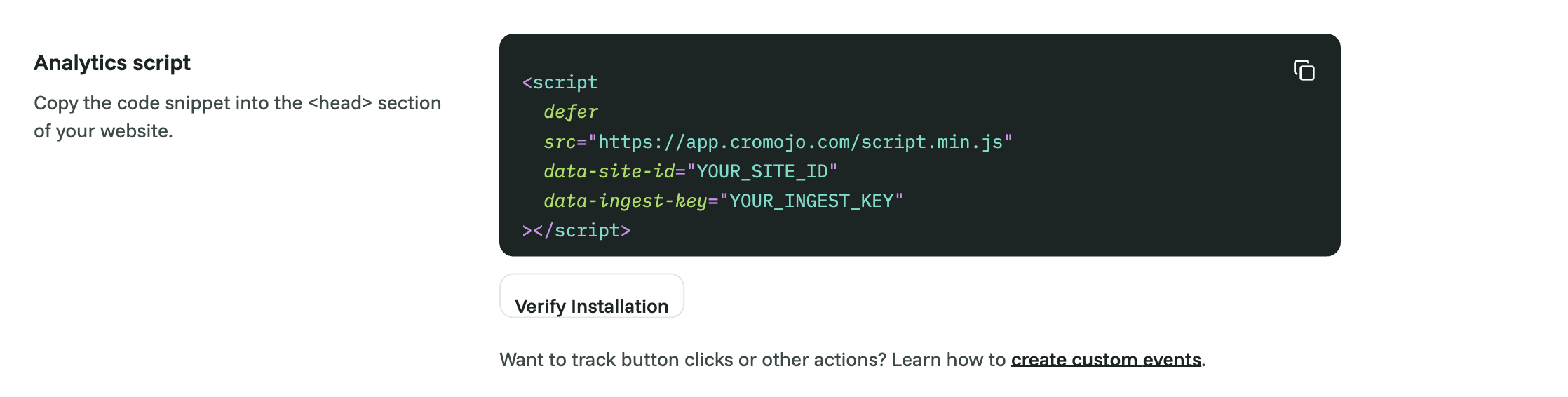
Always copy the whole snippet. It contains more than your site ID. If you build the tag yourself from the site ID alone, Cromojo will ignore the visits it sends, and you won't see an error.
Step 2: Paste it into your website’s <head>
The script goes inside the head section of your site so it loads on every page. Where you paste it depends on your platform:
Install it once. If the same snippet ends up on a page twice (for example directly and through Google Tag Manager), Cromojo ignores the second copy, so nothing is double counted, but it's cleaner to keep one.
Step 3: Verify it’s working
Visit your own website in a normal browser window and click around a page or two.
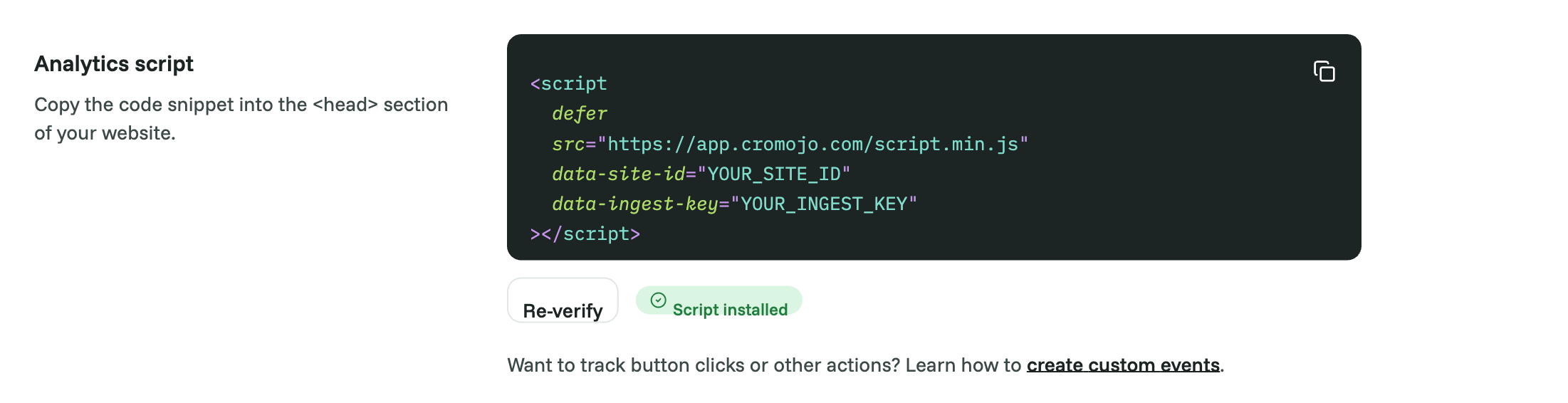
Back in Cromojo, go to Settings > Analytics and click Verify Installation.
Verify checks whether visits from your site have actually reached Cromojo, so it needs at least one real visit first. If it says not detected, wait a minute and click Retry. Once your site is verified, it stays verified. You can also watch for your visit on the Analytics dashboard.
If you change your settings later
Your First-party tracking settings are written into the snippet: returning visitor tracking, and the tracking address on your own domain. When you save a change to either, Cromojo shows "Saved. Your analytics script has changed." Copy the new snippet and replace the old one on your website. Until you do, the new setting has no effect.
Troubleshooting
No data after 10 minutes?
Check the snippet is in the head of your live site, not a staging copy or an unpublished draft.
Check that you pasted the whole snippet, including data-ingest-key. A tag with only data-site-id is ignored.
Check that the domain you're visiting is listed under Settings > Analytics > Inclusions > Domains. Visits from domains that aren't listed are ignored. Subdomains of a listed domain are included automatically. See "Tracking more than one domain".
Check the date range on the dashboard.
My own visits don't show up. If your browser sends Do Not Track or Global Privacy Control (Brave, DuckDuckGo, some privacy extensions and settings), Cromojo respects it and doesn't count the visit. Test from a normal browser window. Ad blockers can also block analytics scripts.
Strict Content Security Policy? Allow the address in your snippet's src under script-src, and the same address under connect-src (the script sends visits back to it). If you use a tracking address on your own website, allow that address under connect-src too.
Single-page app (React, Vue, Next.js)? Nothing extra to do. Cromojo counts page changes that happen without a full reload.
Still stuck? Email support@cromojo.com with your website address.
Related articles
Was this helpful?
Still need help? Ask the team