Setting Up Conversions: Revenue or Goals
Measure what success means for your site
Written By David
Last updated 13 days ago
Conversions tell Cromojo what success looks like for your site and turn raw traffic into a number you actually care about: revenue or completed goals.
Choose how conversions are measured
In Settings → Analytics → Conversion Metrics, pick one:
Revenue: best for stores. Cromojo uses payment data from Stripe or Shopify and shows revenue as the headline metric.
Goals: best for everything else. A conversion is any session that completes a goal you choose (a custom event or a page visit).
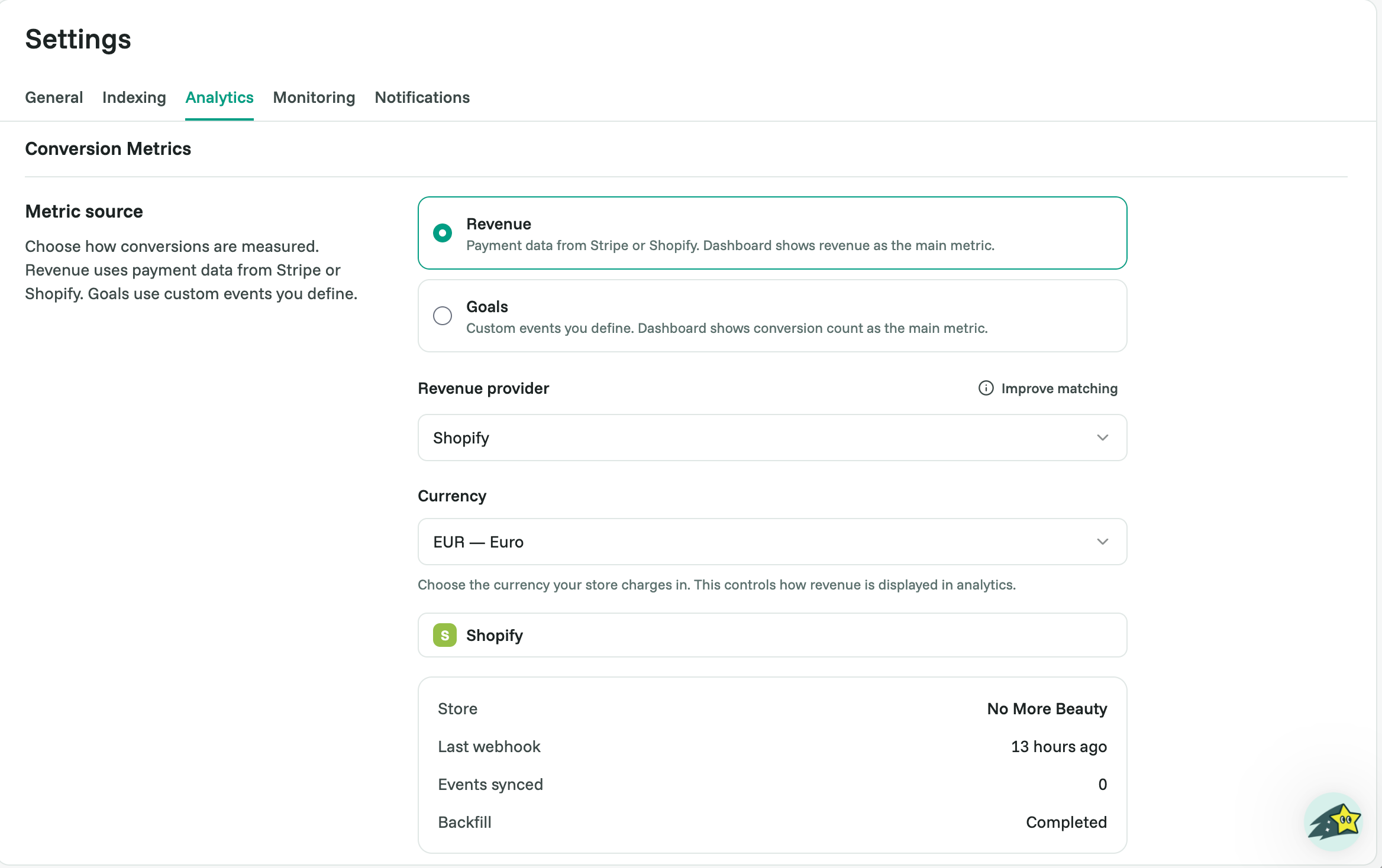
Option A: Revenue Setup (Stripe or Shopify)
Revenue integrations are included from Starter.
Connect your payment source, and Cromojo counts purchases automatically, tying each one back to the visit and traffic source that drove it. Revenue then becomes the headline metric on your dashboard.
Before you start: make sure your analytics tracking script is installed. Cromojo needs visit data to attribute each sale to a source.
Connect Stripe
Go to Settings → Analytics → Conversion Metrics, select Revenue, and click Save.
In the Stripe card, click Connect to Stripe.
You're redirected to Stripe. Log in and approve the connection for the account that receives your payments.
Back in Cromojo, the card shows Connected with your Stripe account, plus a count of Events synced.
Connect Shopify
Go to Settings → Analytics → Conversion Metrics, select Revenue, and click Save.
In the Shopify card, enter your store domain in the format
store-name.myshopify.com(not your custom domain), then click Connect.You're redirected to Shopify. Approve the Cromojo app for your store.
Back in Cromojo, the card shows Connected with your store name and the number of Events synced.
After connecting
Refresh pulls the latest payments right away, without waiting for the next sync.
Disconnect stops new orders from syncing. Revenue data you've already collected is kept.
Tip for Stripe: improve your match rate
Stripe Payment Links and Pricing Tables on pages with the Cromojo script are linked to the visit automatically. If you create Checkout Sessions on your server, pass window.CRMJ.getCheckoutReference() from the browser as client_reference_id, and every payment matches its visit exactly.
Option B: Goals
Goals per site: Free 1, Starter 3, Pro and above unlimited.
A goal matches a custom event or a page visit (for example, purchase, signup, or contact_submitted). Each session that matches at least one goal counts as one conversion.
Add a goal
Go to Settings → Analytics → Conversion Metrics and select Goals.
Click Add goal.
Name it and choose what it matches: an Event (pick one of your custom events) or a Page visit (enter a path and choose Exact, Starts with or Contains).
Click Save.
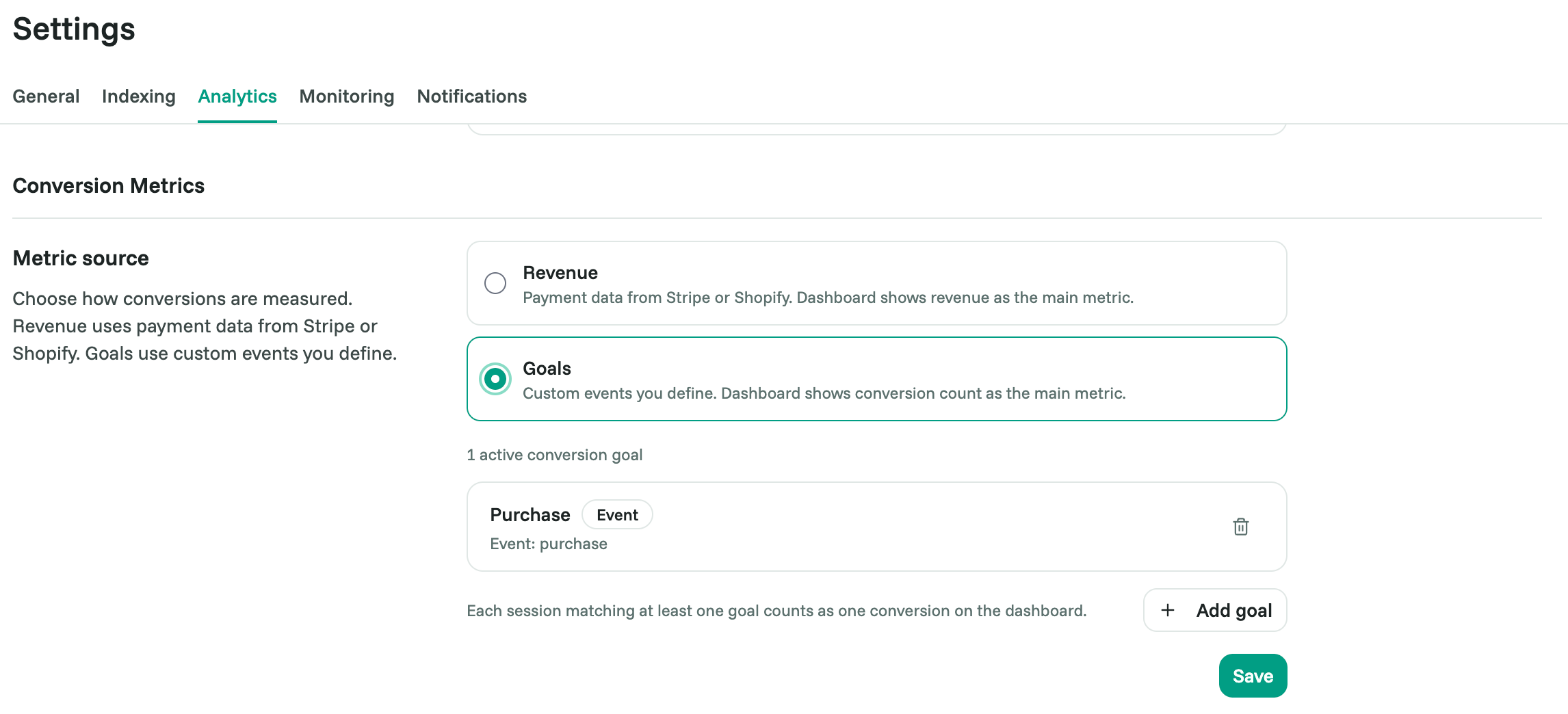
You can run multiple goals at once. Make sure the events are tracked first, see Creating & Tracking Custom Events.
Related articles
Was this helpful?
Still need help? Ask the team